
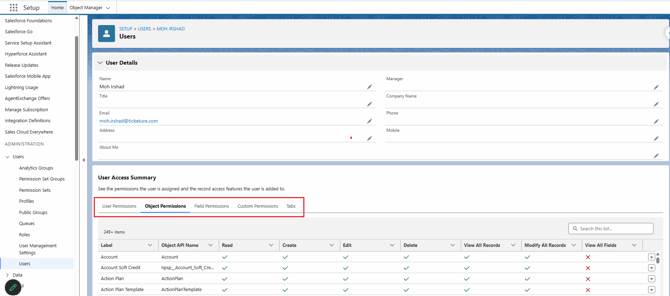
User Access Summary brings key user details and permissions into one view. It helps answer questions such as: Can this user read Opportunities? Can they edit a particular field? Which profile or permission set grants that access?
Object access, field access, and access to an individual record are different checks. A user may have permission to read Opportunities but still lack access to a particular Opportunity because of sharing.
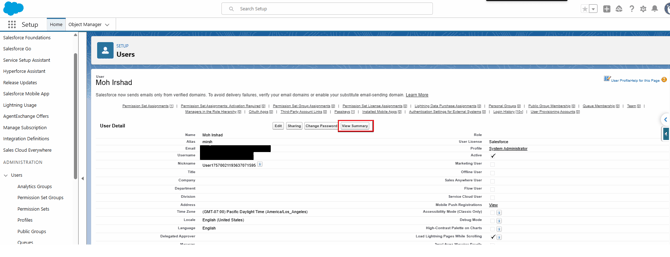
Steps1. Open Setup → Users.
2. Select the affected user's name.
3. Click View Summary.
4. Review the user's profile and assigned permission sets and permission set groups.
5. Open Object Permissions and find the relevant object. Check the permissions needed for the task, such as Read, Create, or Edit.
6. Open Field Permissions and find the relevant field. Check whether the user can read it and, where required, edit it.
7. For a permission you need to investigate, use its row action and select Access Granted By. This identifies the profile, permission set, or permission set group supplying the permission.
8. If useful, compare with a user who performs the same job successfully. Compare the relevant permissions rather than copying all assignments.
9. Grant any missing access through your org's approved permission set process. Check license compatibility and Ticketure package access where applicable.
10. Have the user repeat the exact action that failed.
Example
A staff member can open an Opportunity but cannot edit its Primary Contact. Review Opportunity Edit access, then the Primary Contact field's edit access. If those are present, review access to that specific record and whether the field is editable on the applicable layout or Lightning page.
What to keep in mind• A field on a page layout does not automatically grant field permission.
• Object and field permission do not automatically grant access to every record.
• Use Access Granted By to understand an assignment before changing it.
• Give users the access their role requires. Avoid using administrator access as a routine fix.
• The summary displays configurable field permissions; some fields may not appear there.
Ticketure best practicesStart with the task that failed. Identify the user, record, field, and action involved. This makes the review more useful than comparing every permission in the org.
Keep access tied to responsibilities. Use permission sets to grant the access the role needs. Do not copy all permissions from a working user or assign administrator access just to clear an error.
Check each layer. Review package licensing where applicable, object permissions, field permissions, and access to the specific record. A visible field or button does not prove the user can complete the action.
Review connector access separately. The staff member and the connector authorization account may have different permissions. A staff access issue and an Event Queue processing error can require different checks.
Test as the affected user. Have the user repeat the original action on the same type of record. An administrator successfully completing it does not establish that the user has the right access.
Confirm the resultVerify that the needed permission appears and that the user can complete the original task on the intended record.
TroubleshootingView Summary is missing: Check that you opened the user's detail page and have the required administrative access.
Permissions look correct but the record is inaccessible: Check ownership, organization-wide defaults, role hierarchy, sharing rules, and other relevant sharing mechanisms.
A field remains missing or read-only: Check field permissions, the assigned layout, Lightning page configuration, and any applicable dynamic visibility rules. Formula or system-managed fields may not be editable.
When to contact Ticketure SupportIf Ticketure access still fails after the permission review, include the user role, attempted action, affected record, exact error, and relevant permission assignments. Mask personal details in screenshots.
Related guidance