
Why am I being asked to migrate my Stripe Account?
Great question! With the carve out of Ticketure from TixTrack, Stripe is requiring Ticketure to 're-onboard' our customers into a Stripe account that is set up exclusively for Ticketure. Currently, Stripe does not offer a direct account migration feature, so we must implement this change by guiding each client through a two-phase migration process. Rest assured, the procedure is straightforward and organized to ensure minimal disruption to your operations. Realizing that there may be many questions about this process, we have generated an FAQ located at the end of this article.
To ensure efficient use of resources and minimize downtime, the migration process is divided into two distinct steps.
- Step 1 - Stripe Account Setup
- Resource Needed: Finance/owner of the current Stripe Account
- Time required: Estimated 5 mins to complete the Stripe setup and confirm owner/details (most of which is pulled from the existing Stripe account).
- Step 2 - Ticketure System and Hardware Migration
- Resource Needed: IT/Ticketure hardware user
- Time required: After completion of Step 1, a scheduled time of approximately 2 minutes per Stripe hardware device
Stripe Account Setup
The initial Stripe Account Setup will be completed by the current Stripe Account owner, or a financial representative from the organization. This step should take an estimated 5-10 minutes with mostly confirming existing information and sharing banking/ownership information for the organization.
Note: Completing this step will have NO IMPACT on your current Ticketure operation. Ticketure will continue to operate as it does today, processing against your existing Stripe account until completion of Step 2 below.
Start the Stripe Account Setup
1. Within your Production Ticketure instance, navigate to Portal Settings (Gear in the lower left corner of CMS) and select the "Stripe Accounts" menu item.2. Click the ‘Create Replacement Account’ button (yours may have a Blue background). This will launch another browser window where you will complete the Stripe Account process.
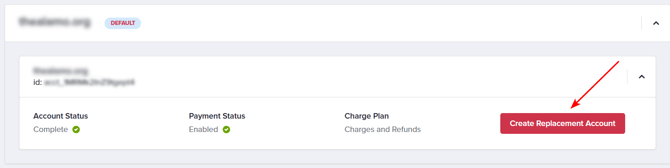
3. Complete the Stripe account setup in this new window. See Stripe Connect Configuration for more details on the Stripe setup process.
Note: If you use the same Stripe account login details as leveraged with your current Stripe account, this will allow for defaulting most of the information on the new account and greatly reduces the time needed to complete the sign up process.
4. Once the account is set up, ensure Stripe is not indicating there were any required actions on the account. If no errors/required actions, close the Stripe browser and refresh Ticketure's Stripe Account page. The Account Status and Payment Status should indicate 'Pending'. Refresh the page periodically (every minute or so), and once all is approved at Stripe, Account Status will show as 'Complete' and Payment Status will show as 'Enabled' (with 2 gree checkmarks).
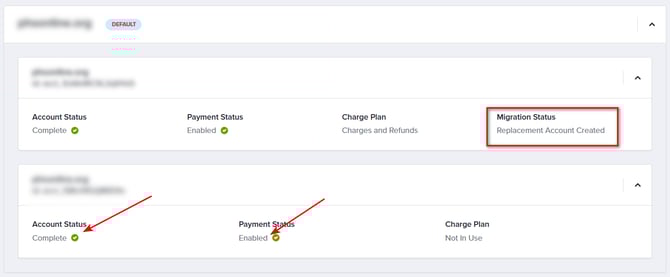
Once there are 2 checkmarks, Step 1 is complete!!!
Send an update on the support ticket, that you have completed the account setup and our team will take it from there.
Ticketure System and Hardware Migration
After you complete Step 1, our Ticketing Services and Finance teams will verify that your new account includes the same fraud settings, enabled payment methods, deal terms, and related details to ensure a smooth migration experience. Once this review is complete, a member of our Ticketing Services team will contact you to schedule a convenient time for a brief call to finalize the migration process.
During the scheduled call, Ticketure’s Ticketing Services team will implement all necessary updates to enable your organization to begin processing payments with the new Ticketure Stripe Account.
Important: During the finalization of the migration, the web payment interface will experience approximately one minute of downtime while the new account keys are registered. Visitors who are viewing the pages will not experience any issues, only those who may be attempting to make a payment.
After the updates of the keys, the web and CMS are able to continue processing as normal, with all charges being processed against the new Stripe Account.
Stripe Terminal Registrations
For all POS devices utilizing Stripe terminals, each terminal will need to be re-registered with the new Stripe account before transactions can be processed. This straightforward procedure typically takes less than one minute per terminal. We recommend prioritizing the operational POS stations that require in-person payments, followed by updating any remaining terminals that see less frequent use.
A member of your team will need to visit each Stripe terminal to complete its registration with the new Stripe account. During your scheduled call, a Ticketure Ticketing Services representative will help coordinate this process by addressing any requirements on Stripe’s side to ensure a seamless transition.
For detailed instructions on registering a Stripe terminal, please refer to our Payment Terminal Configuration article.
FAQ
Q: How long will this process take?
A: The overall migration is split into 2 Steps. Step 1 will take approximately 5-10 minutes. Step 2 will be scheduled a few days after Step 1 is completed and will vary depending on how many Stripe terminals you have and the location of those terminals. You should anticipate 1-2 minutes per terminal, not counting time spent getting between the terminals.
Q: Will my Ticketure instance be down during this time?
A: Only at the start of Step 2. Creating the new Stripe Account will not impact Ticketure's operation. Once Step 2 is started, Ticketure's Web payment interface will be down for approximately 1 minute while the Stripe keys propagate to the web servers. Only visitors looking to make payments during that 1 minute will be impacted. For your POS stations using Stripe Terminals/Tap to Pay - these are required to be re-registered with the new account and will be offline until after Step 2 is completed.
Q: Will my stored cards for Auto-renewing Memberships be migrated?
A: Yes. As part of Step 2, any stored or tokenized cards used for membership auto-renewals and payments will be securely migrated to the new account, allowing for all recurring payments to continue without interruption.
Q: How will I complete refunds on payments processed by my original Stripe Account after migration?
A: Ticketure will be able to determine which Stripe account the charge was made against and handle the refund to the appropriate account.
Q: Will all my payment methods, card rates, and fraud rules all transition to the new account?
A: Yes. After you complete Step 1, our Finance team will confirm all of your existing payment methods, fraud settings, rates, etc., transposing those into your new Stripe account for a seamless migration.
Q: Will I still have access to the old Stripe account?
A: Yes. Access to your existing TixTrack account will remain in place for handling any fraud issues or adjustments that may be needed.
Q: Will this impact my settlements from Ticketure?
A: No. After the migration, Ticketure's finance team will provide the same level of detail for your settlement, but just be referencing your new account.
Q: Will we get 2 separate payments from Stripe until the final transition happens?
A: No, there will always be only a single Stripe/CC payment option. Ticketure will know which one to process against based on your stage of migration.
Q: Will our payout dates change with the new account?
A: No. All rates, payments, payout dates and reconciliation details will be the same in the new account.
Q: I am processing payments via external systems, such as Salesforce, custom ingrations, KIS Kiosks, what will happen with those solutions.
A: Any solution outside of Ticketure that is processing payments via Ticketure's Stripe account will need to have its "Stripe publishable key" updated. This will be part of the migration process and please share this information with Ticketing Services when scheduling so we can ensure with the appropriate teams/organizations that these other applications are ready for the migration as well.
Q: Will I need a new GL Code for the New Stripe Account?
A: No. You will use the existing GL Code.