
Ticketure's Salesforce Connector provides bi-directional data sharing between Salesforce and Ticketure and similar to the configuration of incoming Ticketure data into Salesforce, the Connector provides configuration of the data going from Salesforce into Ticketure. The management of that configuration is found under the Ticketure Payload Configuration section and includes the following configurable options.
Accounts
This tab contains settings for the 2-Way synchronization with Ticketure for Accounts. When configured, these options govern how Accounts are sent to Ticketure as Organizations. Accounts will not sync if the checkbox called ‘Ticketure Do Not Sync’ is checked.
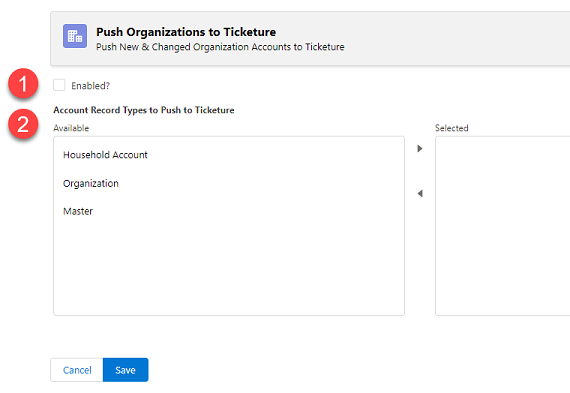
- Enabled?
It’s possible to turn off 2-way synchronization on Accounts. When this is disabled, no queue items will be generated. - Account Record Types to Push to Ticketure
When enabled, only Accounts with record types that match the selected record types will be sent to Ticketure.
Contacts
Contacts work just like Accounts for 2-Way Synchronization. Contacts are created as Users in Ticketure. Contacts will not sync if the checkbox called ‘Ticketure Do Not Sync’ is checked.
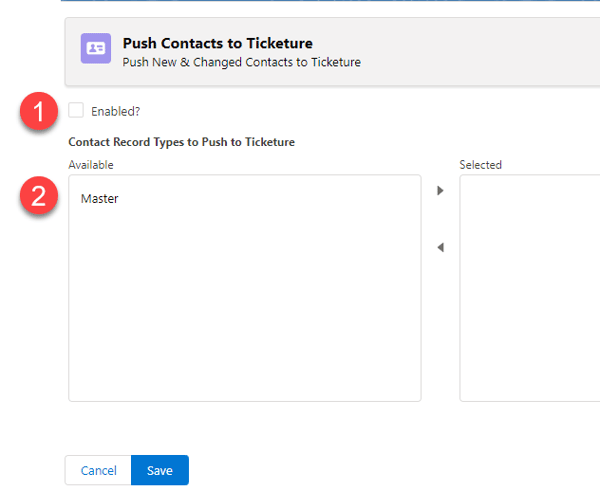
- Enabled?
It’s possible to turn off 2-way synchronization on Contacts. When this is disabled, no queue items will be generated. - Contact Record Types to Push to Ticketure
When enabled, only Contacts with record types that match the selected record types will be sent to Ticketure.
Opportunities
Opportunities synchronize to Ticketure as Memberships. Once an Opportunity has been successfully synchronized to Ticketure, only changes to the End Date will be sent. If changes to any other aspect of the Membership need to happen, then it will need to be done in Ticketure directly. There is also a custom interface designed to assist users in setting up Opportunities for proper processing and push to Ticketure as Memberships. These are covered below in “Opportunity Membership Custom Actions”
While Contacts and Accounts will sync to Ticketure as long as their record types match the specified record types, and they’re not set ‘not to sync’ - Opportunities will only sync if the checkbox ‘Sync to Ticketure’ is checked. This allows for a more deterministic approach to syncing Memberships.
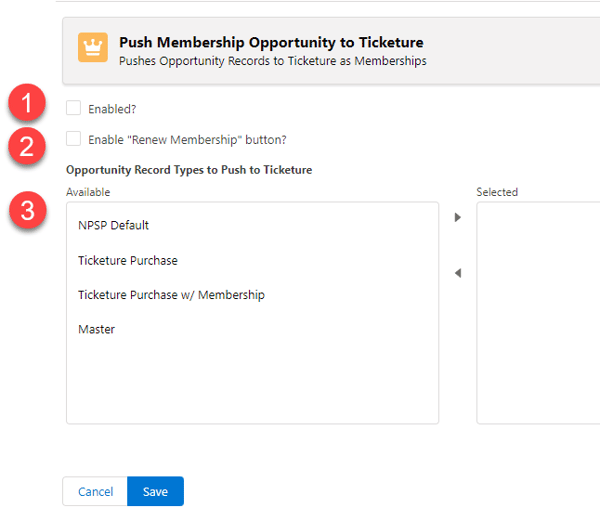
- Enabled?
It’s possible to turn off 2-way synchronization on Opportunities. When this is disabled, no queue items will be generated. - Enable “Renew Membership” Button?
Included in the package is a Quick Action that can be included on opportunity Lightning pages called “Renew Membership.” When used, this page will create a new Opportunity that is a clone of the existing Opportunity where the button was clicked. Users are given the option of changing the effective and expiration dates of the Membership Opportunity that will be created. If this box is left unchecked, the page will not function and return an error to the user if visited. - Opportunity Record Types to Push to Ticketure
When enabled, only Opportunities with record types that match the selected record types will be sent to Ticketure.
Opportunity/Membership Custom Actions
Included in the application are three Quick Actions that can be included on Lightning layouts. The details are covered in the next sections. It’s up to end user Administrators to add these actions to their own Lightning Pages (via the object Layouts).
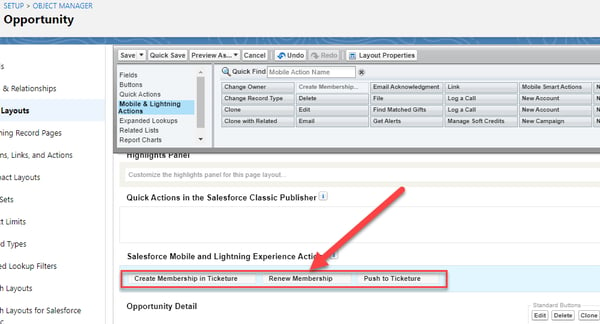
Create Membership in Ticketure
This quick action will launch a modal designed to help end users populate an Opportunity properly based on the membership rules defined in Ticketure. When the page is saved, the Opportunity will be sent to Ticketure.
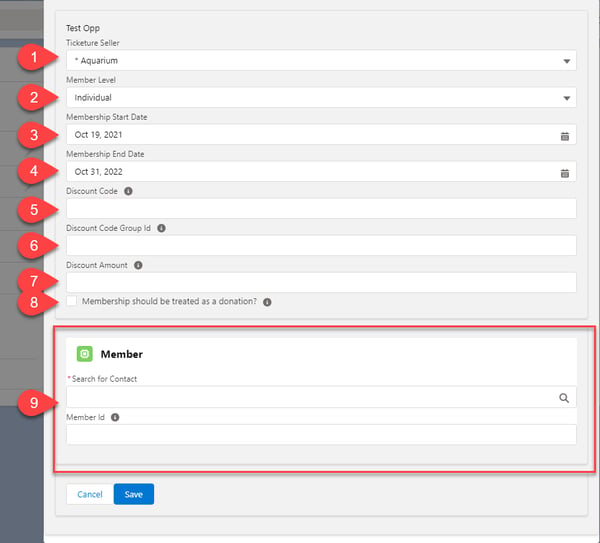
- Ticketure Seller
This is a picklist showing all of the different sellers configured in Ticketure. This will usually contain a single entry. - Member Level
This picklist shows all of the different member levels configured for the selected Seller in Ticketure. This maps to the NPSP Member Level field and it’s a good practice to have the picklists configured the same. - Membership Start Date
The date the membership will start. This maps to the NPSP Membership Start Date field. - Membership End Date
The date the membership ends. This defaults to the last day of the current month, one year from now. This maps to the NPSP Membership End Date field. - Discount Code
Optional. If a discount is being used, the code should be pasted here. The codes are configured in Ticketure. - Discount Code Group Id
Optional, but required if a code is present. This is a GUID that represents the Discount Code Group Id, also configured in Ticketure. - Discount Amount
Optional, but required if a code is present. This is the amount of the discount. - Membership should be treated as a Donation?
This is coupled to the “Membership As Donation Benefit” checkbox on the Opportunity. When checked, line items that come in with the Membership Category will have their Categories changed to Donation. - Membership Cards
This section renders dynamically based on the rules configured in Ticketure for the selected Seller and Member Level. Tickets can be required, named, or not. When named, a contact must be selected from the household. The first ticket will always be mapped to the NPSP Primary Contact field on the Opportunity record. If a legacy member id is known and if it should be sent to Ticketure it can be included in the Member Id field.
Renew Membership
This will launch almost the exact same modal and interface as the Create Membership action. The dates will default differently. The other (and biggest) difference here is that it will save a clone of the existing Opportunity record, and set the Renewal Membership relationship field on the source opportunity to point at the cloned Opportunity. The cloned Opportunity will then be pushed to Ticketure as a Membership.
Push to Ticketure
This button simply checks the Sync to Ticketure checkbox, which triggers the 2-way membership sync to send this membership.