
Once a bundle has been sold, you may need to take post-sale service actions on it, such as refunding it, exchanging a ticket, or removing tickets from a cart. Bundles can be managed on Carts and Orders in both the CMS and the POS.
This article covers how bundles appear, and what actions are available, in each of the following places:
- CMS — Order details, Cart details, and Edit cart.
- POS — Order search, the POS cart, and admission/scanning.
Unlinking a Bundle
Most actions on a bundle start with unlinking it. Unlinking splits a bundle into its individual tickets, so specific tickets can be refunded, exchanged, or removed on their own.
Unlinking is available from Order details, Cart details, and Edit cart in the CMS, and is also required in the POS before actions can be taken on individual tickets.
Note: Unlinking a bundle cannot be undone. Once a bundle is unlinked, its tickets are managed as individual tickets from then on.
CMS
Order Details
On the Order details page, a bundle is shown in a single container with the bundle name, the number of events and tickets included, and the overall price. Inside the container, each event is listed separately, with its tickets displayed under that event.
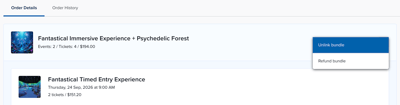
A bundle has two available actions:
- Refund — Refunds the entire bundle.
- Unlink — Splits the bundle into its individual tickets.
Unlinking a bundle from Order details
Once the bundle is unlinked, each ticket appears on its own and can be refunded or exchanged like any other ticket on the order.
Note: This action cannot be undone.
Cart Details
Bundles are displayed in a container in the cart, with the same layout as on the Order details page.

Unlinking a bundle from Cart details
Unlinking a bundle from Cart details works the same way as from Order details. Once the bundle is unlinked, each ticket can be refunded or exchanged individually.
Note: This action cannot be undone.
Edit Cart
When editing a cart, bundle details are shown in the Cart summary sidebar.
While the bundle is linked:
- Removing the bundle — The bundle can't be removed from the cart while editing it.
- Deleting individual tickets — Tickets inside the bundle can't be deleted here.
Note: To remove tickets that are part of a bundle, unlink the bundle first.
Unlinking a bundle from Edit cart
Once the bundle is unlinked, individual tickets can be removed from the cart or changed.
Note: This action cannot be undone.
POS
Viewing Orders via Search
In the POS, bundle orders are displayed differently from regular orders. As in the CMS, a bundle needs to be unlinked before actions can be taken on its individual tickets.
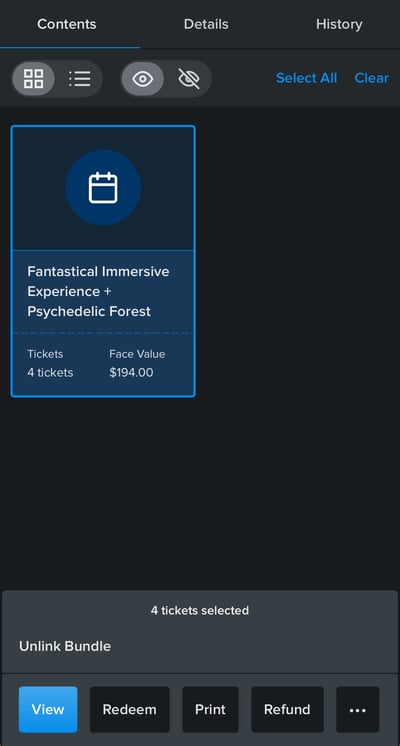
Note: The POS works the same way on iPhone and iPad.
Bundles in the POS Cart
Once a bundle is added to the cart in the POS, its contents can't be edited.
To make changes, delete the bundle from the cart and add it again with the correct selections.
Admission and Scanning
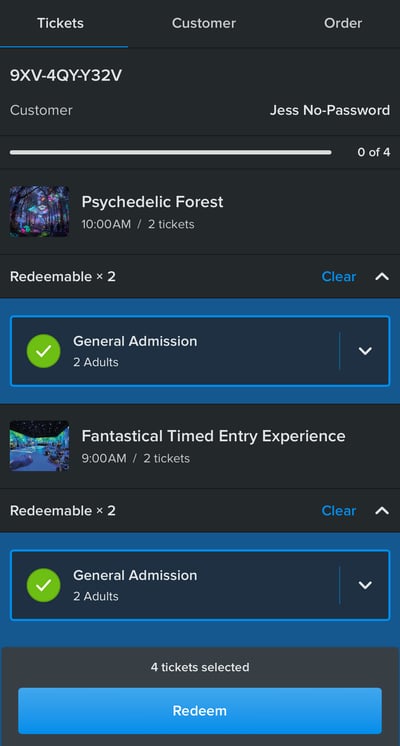
When a bundle's QR code is scanned, it behaves the same way as a multi-ticket QR code.
Best Practices
- Use Refund when the whole bundle needs refunding. Only unlink when you need to act on specific tickets, since unlinking can't be undone.
- Before unlinking, confirm which tickets need to be refunded, exchanged, or removed, so you only have to unlink once.
- In Edit cart, unlink the bundle first if a customer wants to drop one or more tickets. Bundled tickets can't be deleted while the bundle is linked.
- In the POS, check the bundle selections with the customer before checkout. If anything needs to change, delete the bundle from the cart and add it again.
- Let front-of-house and admissions staff know that a bundle QR code scans like a multi-ticket code, so there are no surprises at the gate.
For questions about Manging Bundles After Purchase, please email support@ticketure.com.