
Overview
To simplify event management for clients, Ticketure has enhanced the event archiving functionality within the CMS. Events can now be deactivated, allowing them to be reactivated at a later date, or archived permanently.
Note: There is still a limit on the number of active events per seller. This limit has been increased to 700 active events.
Configuration
Deactivating an Event
To deactivate an event, navigate to the Events list in the CMS and select the kebab menu (three-dot icon) located to the right of the event name. From the dropdown menu, select Deactivate Event.
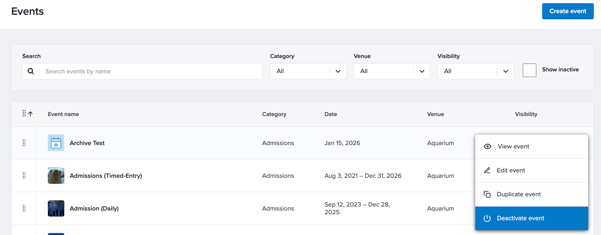
Once deactivated, the event will no longer appear in the active Events list and will be categorized as Inactive.
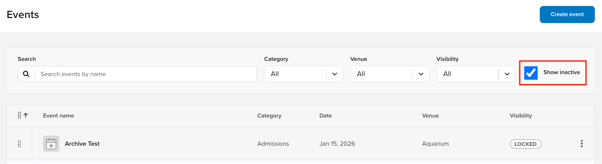
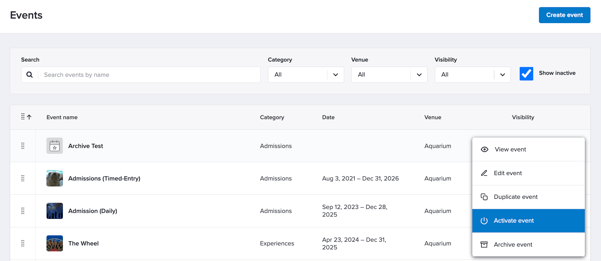
When viewing an inactive event, it will automatically be set to a Locked status. To reactivate or archive the event, select the kebab menu again and choose either Activate Event or Archive Event.
Note: Inactive events cannot be sold through e-commerce, the CMS, or POS channels.
Viewing Inactive Events
To view inactive events, select the Show Inactive checkbox located in the upper-right corner of the Events screen.
Reactivating an Event
Once an event has been reactivated, it will remain in a Locked status until this setting is updated in the Event Options.
Archiving an Event
Archived events cannot be recovered. If an event is archived unintentionally, please contact Ticketure Support at support@ticketure.com.