
Overview
Field History Tracking records changes to selected supported fields after tracking is enabled. It is useful when investigating an unexpected change to a Primary Contact or another important business field.
A history row can help establish when a change occurred and which Salesforce user made it. If the user is the integration account, further investigation is needed to determine the payload or automation responsible.
Steps to enable tracking
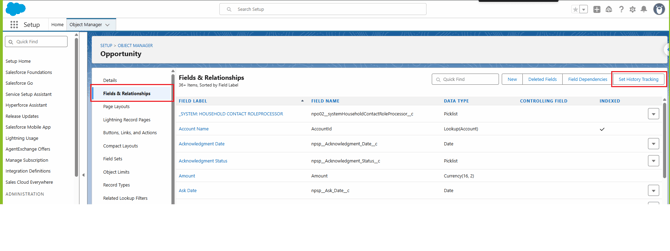
- Open Setup → Object Manager → Opportunity.
- Select Fields & Relationships → Set History Tracking. Alternatively, search Setup for Field History Tracking and click View beside Opportunity.
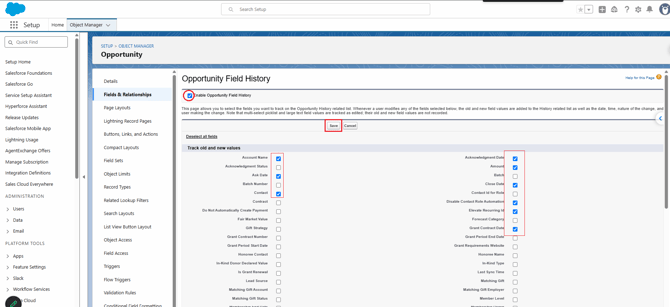
- Enable Opportunity history if it is not already enabled.
- Select Primary Contact, if it is present and supported in your org. Select other fields based on your reporting and troubleshooting needs and available tracking limits.
- Save.
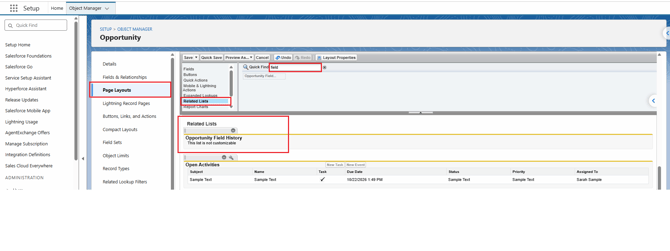
- Open Opportunity → Page Layouts and edit the layout used by the demo record.
- Add the Opportunity Field History related list if it is missing, then save. Confirm the Lightning record page exposes the related lists used by that layout.
Steps to view a change
- Open a test Opportunity and note the current Primary Contact.
- Change it to another appropriate test Contact and save.
- Open the Opportunity's Related tab.
- Find Opportunity Field History, or the equivalent field-history related list label used by your org.
- Review the field name, date/time, user, and recorded old and new values.
- Restore the test record if needed. That change may create another history entry.
Example
The Primary Contact changes from one test Contact to another. The history row lets you see who made the change and when, rather than relying only on the record's Last Modified By field.
Close Date: why a change can appear without enabling tracking
Salesforce also maintains standard Opportunity history information. Close Date-related history or standard Opportunity history can appear separately from your selected Field History Tracking settings. Seeing a Close Date change does not prove that custom field tracking was enabled. Use Primary Contact, as we did in the training, to demonstrate the tracking you explicitly configured.
Important points
- Tracking does not recover changes made before it was enabled.
- Select fields intentionally; supported fields, limits, retention, and displayed values depend on Salesforce capabilities and licensing.
- Last Modified By shows the most recent record update, not a complete history of each field.
- Field history identifies the recorded change, but may not explain its business or technical cause.
Confirm the result
Make a genuine field change after enabling tracking and confirm a matching history row appears. Saving the same value is not a meaningful test.
Troubleshooting
No history row appears: Confirm tracking was enabled before the change, the correct field was selected, and the value actually changed.
The related list is missing: Check the assigned page layout, Lightning page, and user access.
The integration user appears: Compare the timestamp with relevant Ticketure Event Queues, payloads, and Salesforce automation before drawing a conclusion.