
When you add a Membership Program in Ticketure, its value must also be available in Salesforce for the Opportunity record type used by the purchase. This article explains how to refresh the program values and enable them for the correct record type.
Before you begin• Confirm the Membership Program is fully configured in Ticketure.
• Identify the Opportunity record type used by the affected membership workflow.
• Confirm you are working in the correct Salesforce and Ticketure environments, especially when testing in a sandbox.
• If resolving an error, collect one failed Event Queue record, its full error, and the Ticketure order or cart number.
• Record the existing picklist selections and default before making changes.
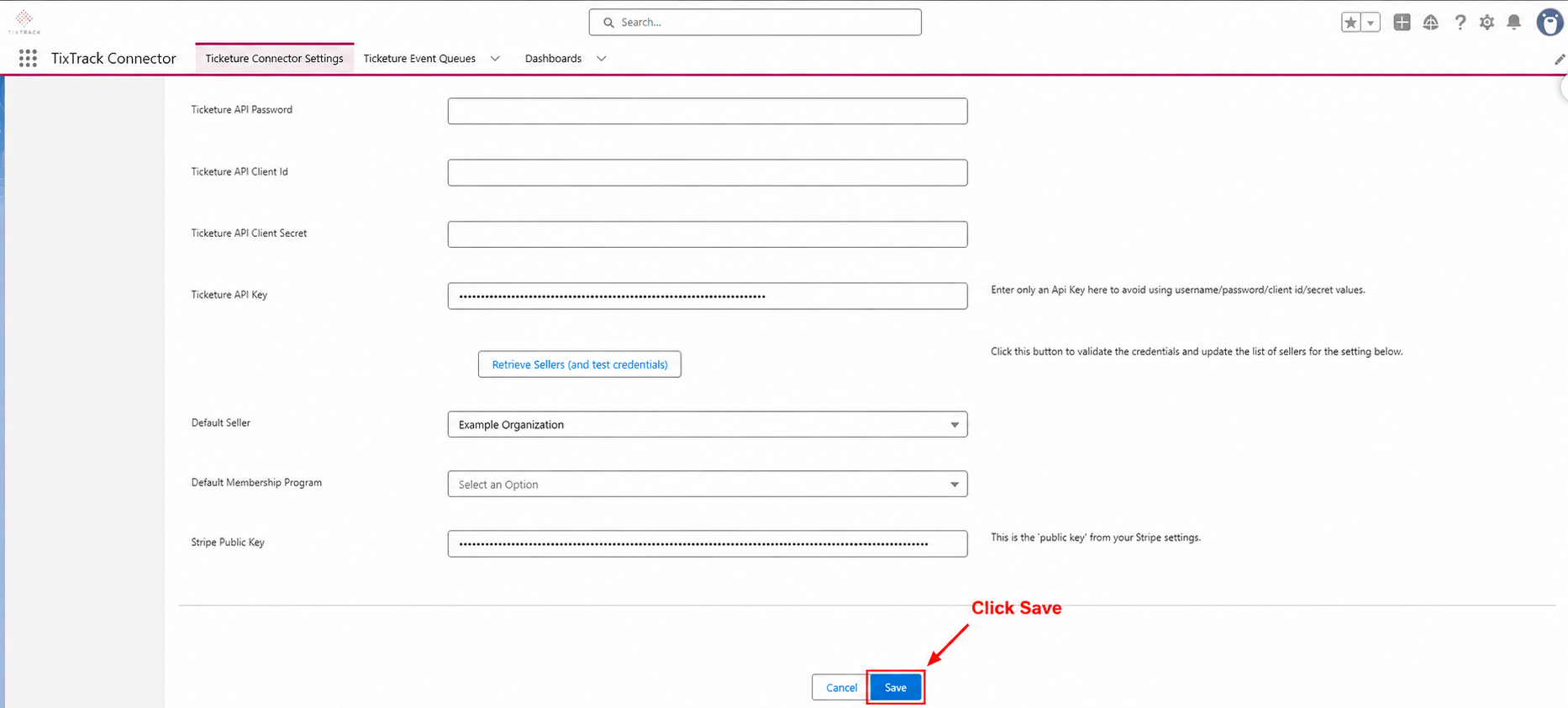
Configuration stepsRefresh the Membership Program values1. Open Ticketure Settings in the Salesforce org connected to the relevant Ticketure environment.
2. Click Save to rebuild the Membership Program picklist values.
1. Open Salesforce Setup.
2. Select Object Manager.
3. Open Opportunity.
4. Select Record Types.
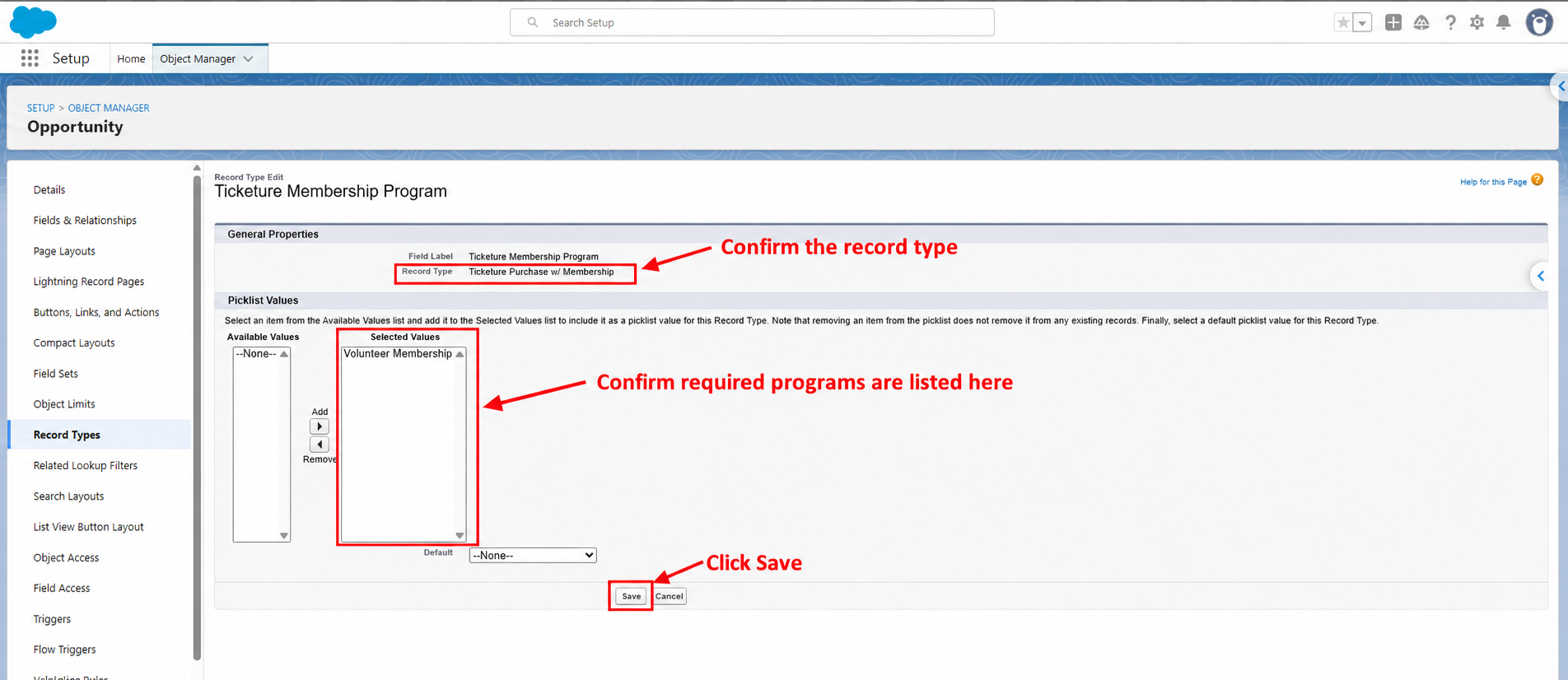
5. Open the record type used by the membership workflow.
6. Under Picklists Available for Editing, click Edit beside Ticketure Membership Program. Confirm the label if your org uses a different display name.
7. Select the required Membership Program values in Available Values.
8. Use Add or the right arrow to move them to Selected Values.
9. Click Save.
10. Repeat for each additional Opportunity record type that uses those programs.
Note: A value can exist in the field’s value set without being enabled for the relevant record type. Setting a Default Membership Program in the Connector is not a substitute for refreshing the values and checking record type availability.
If the expected value is missing after saving Ticketure Settings, confirm the program setup and connected environment with Ticketure Support before manually creating or renaming picklist values.
Retry and verify processing1. Open one affected Ticketure Event Queue record after correcting the configuration.
2. Retry the failed event using your established Event Queue retry procedure.
3. Confirm the Event Queue record shows Processed.
4. Open the resulting Opportunity and verify its record type and Ticketure Membership Program against the Ticketure purchase.
5. After one successful retry, retry the remaining events affected by the same configuration issue.
Expected resultThe required Membership Program values are available for the intended Opportunity record type. The affected membership transaction processes successfully, and the Opportunity shows the correct Membership Program without the restricted picklist error.
Tips and gotchas• When adding a Membership Program or creating an Opportunity record type, confirm the required program values are enabled for that record type.
• Saving Ticketure Settings refreshes the program values. You still need to check the record type’s Selected Values; adding the field to a page layout does not enable those values.
• If possible, test in a sandbox first and repeat the configuration checks in production.
• After updating the settings, retry one failed event and confirm it processes successfully before retrying the remaining affected events.
• Keep a record of which Membership Programs and Opportunity record types are used for each membership purchase process.
When to contact Ticketure Support
Contact support@ticketure.com if the expected program value is missing after saving Ticketure Settings or the event still fails after enabling it. Include the environment, Connector version, record type, Membership Program name and ID, order or cart number, Event Queue number, full error, and screenshots of the selected values.