
Apple Pay and Google Pay are very popular payment services that can help expedite payments for your visitors. For those in-person purchasers, Apple Pay and Google Pay are automatically enabled from the POS (Point of Sale). But for Apply Pay/Google Pay to be enabled on your website, an additional configuration is needed to grant access to your Stripe account from your website domain(s). This article will walk you through that configuration to ensure your web visitors can leverage the payment option.
Payment Method Domain Enablement
1. Log into your Stripe Dashboard/Portal.
2. In the Search box located at the top of the page, type in 'payment methods' and you should be presented with something similar to the following list:
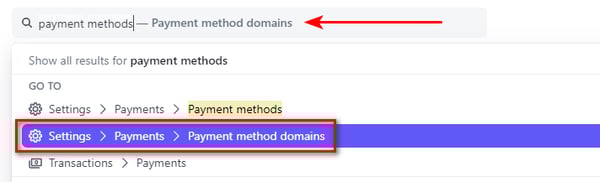
3. Select 'Payment method domains'.
4. When the page is rendered, ensure that you are on the 'Payment method domains' tab - and click 'Add a Domain'
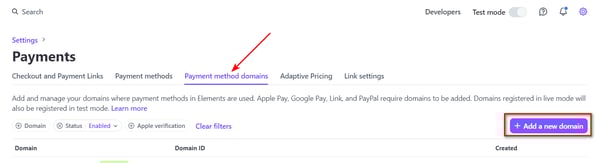
Note: Confirm that your existing domain is not on the existing list and not verified. Verification for all Ticketure hosted payment pages will be automatic. If you are hosting your own payment page (not recommended) see details below for self hosted payment pages.
5. On the 'Add a Domain' page enter the subdomain of your Ticketure site - ex: tickets.yourdomain.com and click 'Save and Continue'.
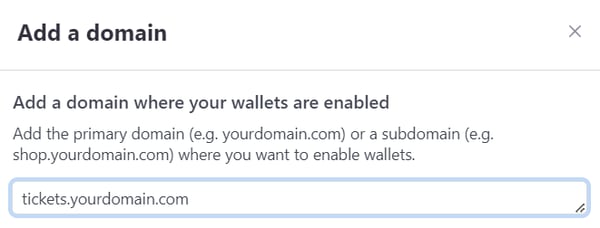
6. The next screen is for domains hosting their own payment page and can be skipped by most customers - so click 'Skip for Now'.
7. Complete!
You should be back at the list of approved domains and the domain you entered above should be in the list and have a status of 'Enabled'.
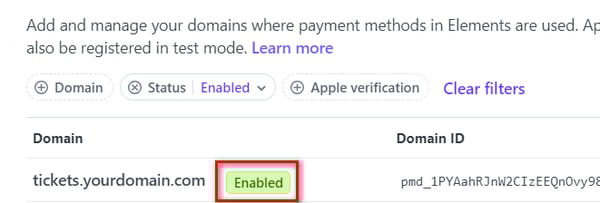
If your site is not immediately updated to Enabled, give the site a few minutes and refresh the Stripe page and it should be updated. If for some reason your site remains 'Unverified' - see screenshot below - please reach out to support for assistance.

Self Hosted Payment Pages
For organizations who have built a complete custom website using Ticketure's API and are also hosting their own payment page (not recommended), after entering your domain in the step above, Stripe will indicate that you must host a file in a particular location on your site.
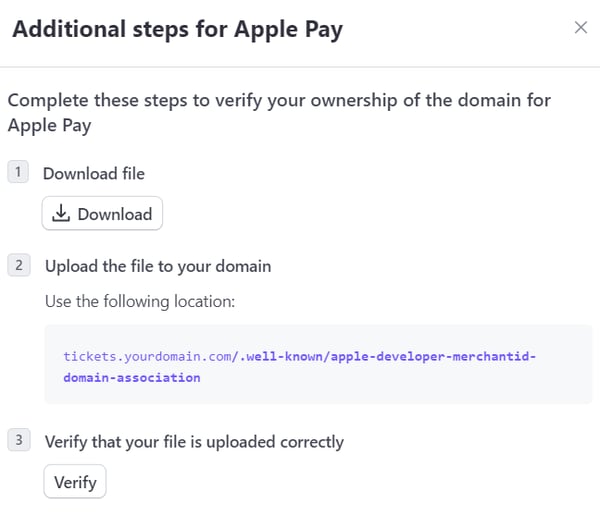
Download the file and add it to the specific location as outlined in Steps 1 and 2 and then click the 'Verify' option to ensure the domain is 'Enabled'.